
The studio
A tour of the editor: the bar, the objects rail, the stage, the inspector, the timeline, and the palette that reaches everything.
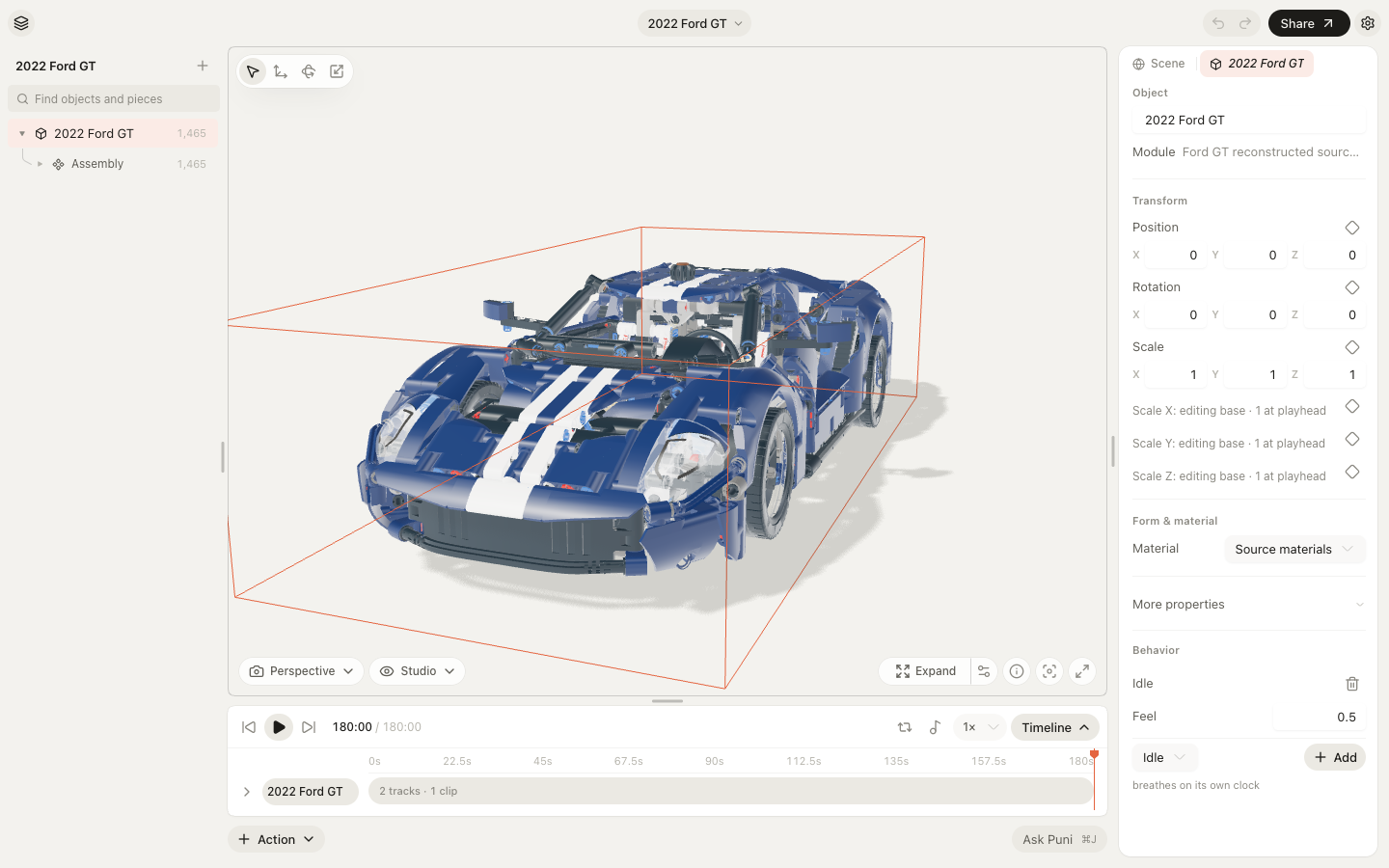
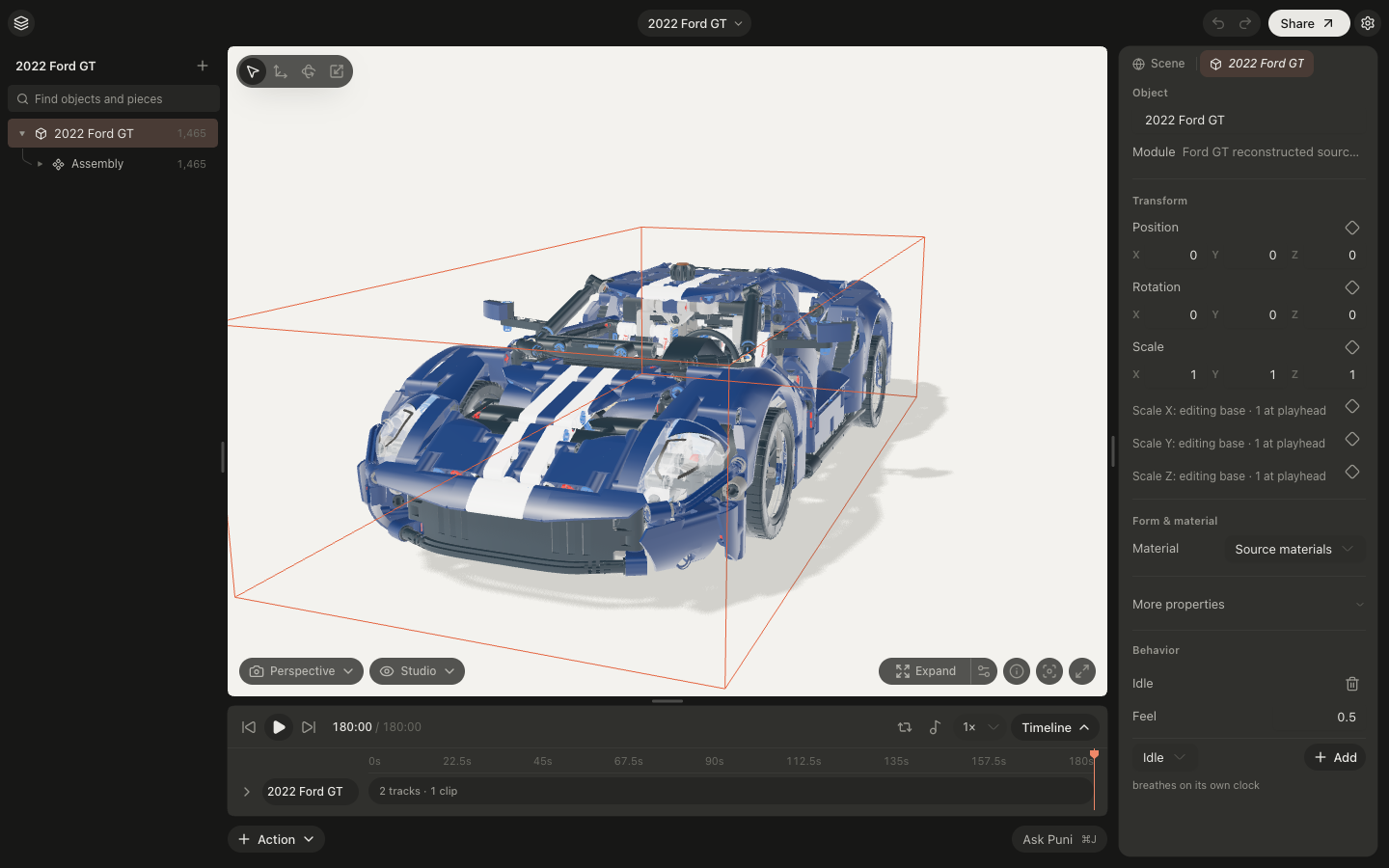
The studio opens at puni.design/p/<scene>. It is one screen: the scene in the middle, the things that make it up on the left, the thing you selected on the right, time along the bottom.
Open in Puni and choose a scene to enter the studio.
#The bar
The scene's name sits in the middle and is a menu: Back to library, Search commands, Version history, Duplicate scene, Settings, Guides, and Archive scene. On the left, the objects rail's switch. On the right: undo and redo, Share (Share a link… and Export files…), and the inspector's switch.
#The objects rail
Press ⌘B to show or hide it. Every object is a row; groups fold. Click a row to select it. Double-click a row, or press Enter, to open the object as a tab in the inspector. Press + at the top, then Add object…, to add an interface, a shape, text, a mark, a curve, an outline, a fitting, a cloner, a shader, or a source file.
#The stage
| Do | How |
|---|---|
| Orbit | Drag, or the arrow keys |
| Pan | Shift and drag, or Shift and an arrow key |
| Zoom | Scroll, or pinch |
| Select, move, rotate, scale | V, W, E, R |
| Fit the scene | F |
| Duplicate, group, delete | ⌘D, ⌘G, Backspace or Delete |
| Hide or show canvas controls | H |
The gizmo follows the active tool. Typing a number in the inspector is always available when a drag is not precise enough.
#The inspector
The inspector is a strip of tabs. Scene is always first and shows the length, frame rate and size, and the stage’s lighting, exposure, background, shadows and transparency. Selecting an object opens its tab beside Scene: properties (or Form & material for a source file), Transform, and a Behavior panel; a fitting object also gets a Fitting panel. The tab of the selected object is a preview that the next selection replaces; a double-click on a row in the rail, or on the tab itself, or editing in it, keeps a tab open, and kept tabs close from their × and reorder by dragging. An action selected in the timeline adds an Action tab at the end. Drag the panel's edge to resize it.
#The timeline
Space plays and pauses. Tracks are objects with motion; clips are actions placed in time. Drag a clip to move it, its ends to trim it, and double-click to edit its keys. Behaviors you add in the inspector’s Behavior panel appear as ordinary tracks and clips. Press T to hide the timeline when you are not typing in a field.
#The palette
Press ⌘K to jump to another scene or run an action: add to the scene, export, play or pause, fit the scene, undo, save, open version history, go back to the library, or see keyboard shortcuts. Rows show their shortcut where there is one.
#On a phone
The studio fits a phone: the rail opens as a dialog and the inspector as a sheet from the bar’s two ends, undo and redo move into the scene menu, the bar keeps the scene's name in the middle, and the stage takes the rest. Editing works.
Read Keyboard shortcuts for the whole list.
Was this useful?